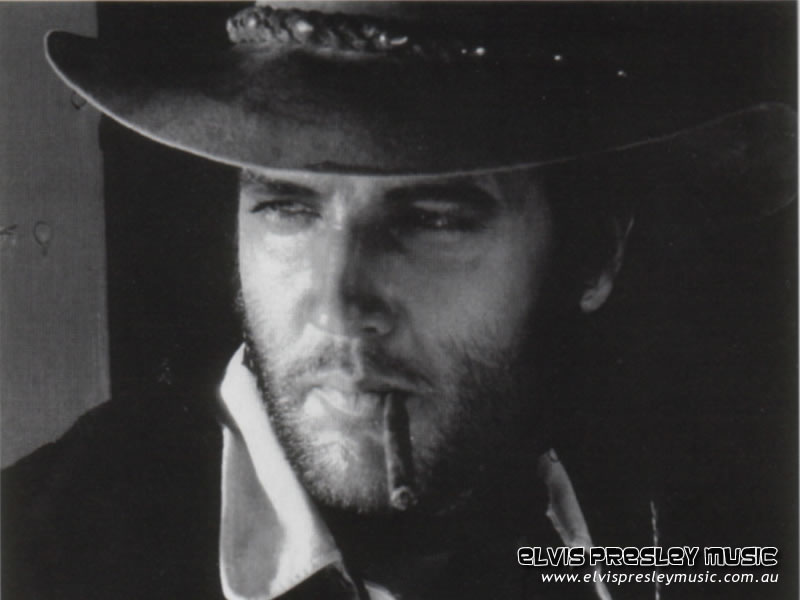
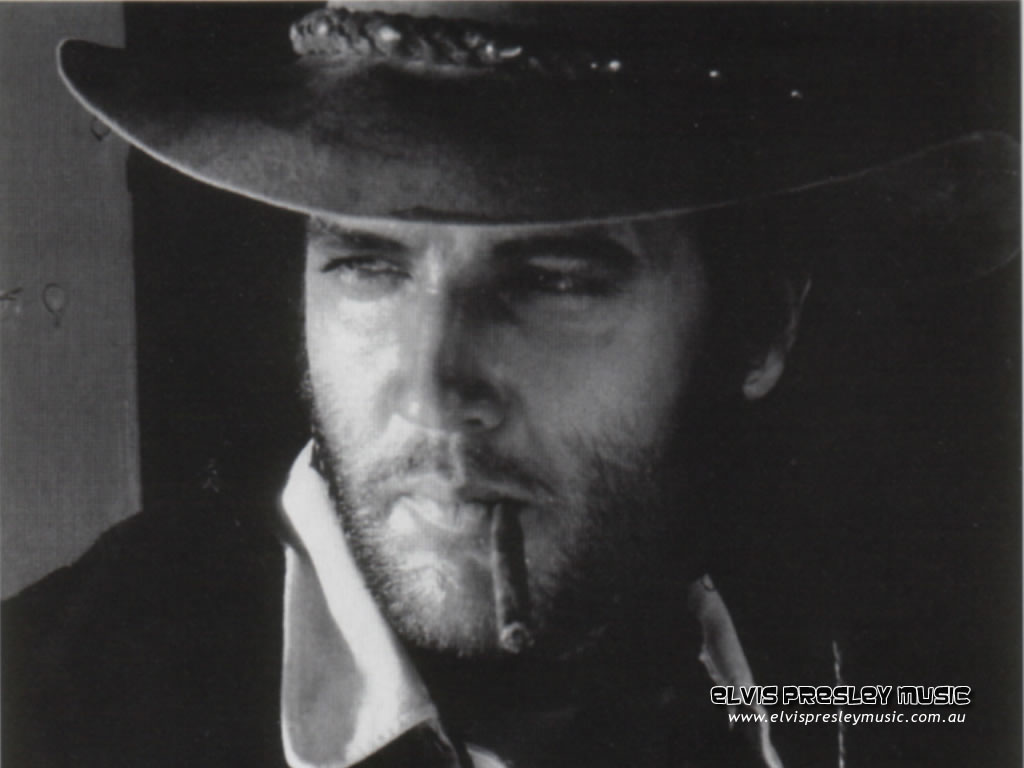
Elvis Presley | EP Music PC Wallpaper
Please choose a computer Elvis wallpaper below.
Simply and follow these simple set up instructions below for Windows or Mac.
 |
 |
 |
|---|---|---|
| 1280x1024 | 800x800 | 1024x768 | 1024x768 |
 |
 |
 |
 |
 |
 |
 |
- | - |
- |
- |
EP Music Wallpaper Installation Instructions
Install for Windows 95 or greater
- Click on the size you need (800x600 or 1024x768) of the image of your choice.
- Right-click on the large image that appears in the new window.
- Select 'Set as Wallpaper'. Your wallpaper is now in place!
If 'Set as Wallpaper' is not available, choose to save the image and follow steps 3 through 7.
- A box will then appear that asks where you would like to save the file. We suggest that you save the file to your Windows directory. If you save it in any other location, please remember the location so you can find it later!
- Minimize all programs so you can see your Windows 95 desktop (if you can see the 'My Computer' icon, then you're at your desktop!)
- Right click anywhere on the desktop. This will open a list of options. Select the 'Properties' option. The 'Display Properities' box will open. The Screensaver tab should be at the front of the window.
- Select the image you just downloaded from the list of images available as wallpaper. You may need to scroll down in this box to find the image. Clicking on the image should show a small preview picture of the wallpaper in the simulated computer screen.
- Click OK. Your wallpaper is now in place!
Install for MacOS 8 or greater
- Click on the link to the image of your choice.
- Now save the image to your desktop from the prompt.
- Open the 'Appearance' Control Panel.
- Select the 'Desktop' tab.
- Drag the image on top of the Control Panel.
- Click the 'Set Desktop' button, and your wallpaper is now in place
(If you are using an MAC OS earlier than 9, you will need to follow these instructions: By default Mac OS 8 installs a folder called Sample Desktop Pictures in the Apple Extras folder on your hard drive. After downloading your wallpaper selection, place the file in the Sample Desktop Pictures folder.
The Desktop Picture Control Panel allows you to select and activate the wallpaper image that you have downloaded. (example: elvis_68montage.jpg) To get to the Desktop Picture Control Panel look under the Apple inside the Control Panel folder. Within the Desktop Picture Control Panel click the 'Picture' button and then click the 'Add Picture/Remove Picture' button to make a selection (pick the image you just downloaded.) Click the 'Set Desktop' button and you're done!)


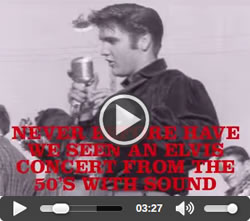

 Tupelo's Own Elvis Presley DVD
Never before have we seen an Elvis Presley concert from the 1950's with sound. Until Now! The DVD Contains recently discovered unreleased film of Elvis performing 6 songs, including Heartbreak Hotel and Don't Be Cruel, live in Tupelo Mississippi 1956. Included we see a live performance of the elusive Long Tall Sally seen here for the first time ever. + Plus Bonus DVD Audio.
This is an excellent release no fan should be without it.
The 'parade' footage is good to see as it puts you in the right context with color and b&w footage. The interviews of Elvis' Parents are well worth hearing too. The afternoon show footage is wonderful and electrifying : Here is Elvis in his prime rocking and rolling in front of 11.000 people. Highly recommended.
Tupelo's Own Elvis Presley DVD Video with Sound.